Model
Video Fast 1.0 Free
Endless creativity, minimal cost. Reserved for early supporters
Image
Drag & Drop, Paste, or Click to Upload
PNG, JPG, JPEG, WEBP , Max 10 MB
Prompt
0 / 2500
Aspect Ratio
1:1
3:4
4:3
9:16
16:9
Duration
3 s
5 s
Resolution
480p
720p
Create
Sample Video
Sample video preview

Best Image to Video AI: Free AI Image to Video Generator for Everyone

Create stunning animations with aiimagetovideo pro, our free AI video generator. Transform static images into motion using artificial intelligence image to video technology. Whether you explore Google Veo, Veo 3, or Imagen 3, our free tool helps you make video from images for social media. It is the best free image to video AI app to add image to video workflows and convert image to video online free. Use this free generator to make AI video from image files instantly.

Original Image
Prompt
Two minimalist skincare products on a flowing ribbon, soft pink background with bokeh effects.
Sample Video
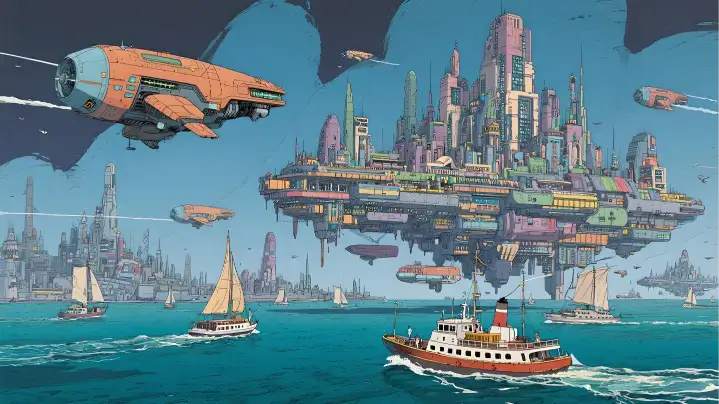
Original Image
Prompt
A solar-powered sailboat drifts past a floating city. The camera pushes through a biodome roof, revealing vertical gardens and hoverbike riders.
Sample Video
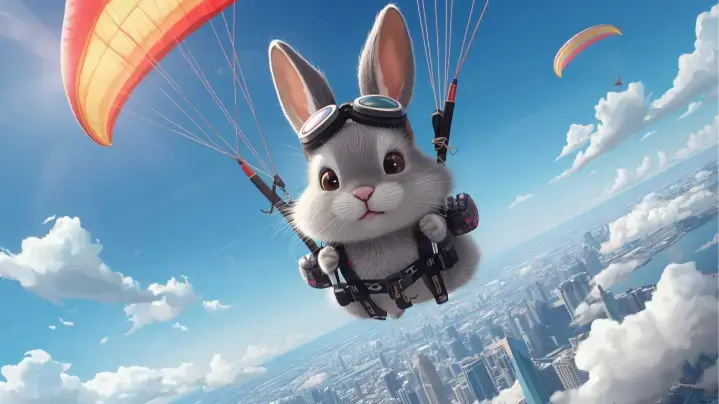
Original Image
Prompt
A rabbit paraglides above a city. The camera follows movement over colorful rooftops and clouds.
Sample Video

Key Features of Our Image to Video AI Generator

Discover the power of aiimagetovideo pro, our free image to video AI generator. Turn image into video with this dynamic image to video maker. Like the Luma AI video generator or Kling AI video generator, we offer high-quality results to convert image to video online free. You can generate unlimited possibilities with this free image to video tool. Add image files and make video magic with our free AI generator online.

Versatile Visual Options with AI Image to Video

Explore endless creative directions with aiimagetovideo pro, our free images to video AI. Whether you want to turn image into video for storytelling or marketing, our platform adapts styles seamlessly. It is the most versatile free image to video maker, rivaling Hunyuan image to video and Runway image to video style transfer capabilities. Add image to video projects to make unique video content. Convert image to video styles easily with AI online.

Generate Video from Images

Multi-Input Prompts: Image & Text to Video AI Generator

Combine your image with descriptive text prompts using aiimagetovideo pro and our free text to video AI generator features. Just like a Google Veo 3 AI video generation process, mixing image + text ensures creative control. Use it to prepare video from images with cinematic motion. Make video with text and add image inputs easily. This free generator lets you convert image to video with precision.

Generate Video from Images

HD AI Image to Video Output Without Watermarks

Get professional video from image results with aiimagetovideo pro, our image to video AI generator free. Create stunning HD results without watermarks, unlike some AI video generator no restrictions tools. Perfect for creators seeking high-quality images to video output, ensuring your content looks like it came from a premium video to video AI generator. This free app helps you convert video from image flawlessly. Add image assets and make video exports in HD.

Generate Video from Images

How to Create Video with Images using AI Video Generator?

Upload Your Image to AI Video Creation

Begin by uploading an image (JPG, PNG, WEBP) to aiimagetovideo pro, our free image to video converter. You can crop or frame to match your desired aspect ratio. This step is essential to convert image to video ai successfully. Add image files to start the free video generator process. Make video from image setup quickly.

Type in Prompt & Customize Your Video

Enter a description to guide the free AI video generator from text (or leave blank). Adjust settings like the AI model (we aim to match Gemini Veo 3 quality), duration, and resolution. This helps you make video from images that match your vision perfectly. Our online tool makes it simple to add video effects to your image. Convert image settings to customize output.

Click "Generate" and Wait for Export

Click to let the AI render. Review motion and effects before you generate AI video from images. You can preview the result, similar to how you might using ComfyUI image to video or Hailuo AI image to video workflows, before exporting. With aiimagetovideo pro, the free generator works fast to convert image to video. Add image tweaks if needed before you make video final.

Innovative Cases of AI Image to Video

See how aiimagetovideo pro, a free image to video AI generator, brings ideas to life. Easily turn any image into motion and create AI video from image for marketing or stories. We support various styles, from Flux image to video aesthetics to realistic motion. Use our free tool to make video content stand out. Add image creativity with our generator.

Moving Photos
Dynamic Ads
Presentation Demos
Travel Stories

Bring Still Images to Life with Motion

Transform static images into vivid videos with aiimagetovideo pro. Perfect for product showcases, our free AI lets you create video from images easily. Unlike basic animation AI generator tools, we provide dynamic content that feels alive, similar to results from Wan 2.1 image to video or Minimax AI image to video. Add image to video transitions for better flow. Make video memories from any image.

Users' Views on AI Image to Video

Best Image to Video AI for Beginners: Easy, Fast, and Intuitive

I'm not tech-savvy, but this was effortless. Compared to Vidnoz AI Image to Video or image to video ai kling, this is more intuitive. I uploaded an image, added a prompt, and the free AI created a stunning video. It's the best image to video ai generator free tool I've found to make video content. I can add image files easily.

Maya Rodriguez
Beginner User

AI Video Generator from Image: Simplify Marketing in Minutes

As a manager, I need speed. This platform works like a free image to video AI generator, turning product images into clips in minutes. The AI video generator free online access with trial credits let me test it easily. Better than some AI image to video Rutracker cracks I've seen. A great app for marketing. It helps me convert image to video ads.

Liam Johansson
Marketing Manager

AI Picture to Video Tool Every Creative Designer Will Love

I love how easy it is to make video from images. The free AI handles the heavy lifting. It saves hours and helps create professional content. It feels like having a personal Civitai image to video model at my fingertips. The generator is powerful and free to try. I add image details to every video.

Sophie Turner
Designer

Turn Real Estate Photos into Cinematic Property Tours

I used to spend hours editing. Now, I just upload images, and the free AI turns them into elegant clips. It helps clients visualize spaces. A great alternative to complex ComfyUI image to video setups for quick tours. I can add image details easily and make video tours fast.

Gabriela Santos
Realtor

Best Picture to Video Tool for Turning Photos into Viral Clips

I am always racing to post. This free AI tool transforms images into lively short videos. The animations look smooth, like a high-end AI video generator from image. My engagement doubled. It is a must-have app for influencers who want to convert image to video fast. I use it to make video viral hits.

Ava Reyes
Social Media Influencer

Boosting Product Sales with Photo to Video Animation Tools

Visuals make or break sales. These photo to video animation tools create promo videos straight from images. The results look professional. It is fast, easy, and better than trying to hire a team to create a video using AI manually. The best free generator online to convert image to video.

Leo Martens
Shopify Store Owner

News

MotionAmber Review 2026: Is This AI Photo Animation Tool Worth It?

MotionAmber Review 2026: Is This AI Photo Animation Tool Worth It?

What if that faded photograph of your grandparents on their wedding day could blink, smile, and gently turn — as if the moment never ended? That’s the promise behind AI photo animation, and it’s why tools like MotionAmber are gaining traction in 2026. The problem? Dozens of AI video generators flood the market, yet many produce warped, unnatural results — the dreaded “wobbly photo” effect. MotionAmber claims to solve this by specializing exclusively in portrait animation. But at $29.99 for just five animations, is it worth it? This review covers how MotionAmber works, what it costs, what real users think, and how it compares to free and paid alternatives. What Is MotionAmber? MotionAmber is an AI-powered photo animation platform that transforms still images into short, lifelike videos. Rather than competing as a general-purpose AI video generator, it focuses on one task: making photos look alive with natural, subtle movement — particularly for emotional use cases like preserving family memories and honoring loved ones. How MotionAmber Works You upload a photo, and MotionAmber’s AI analyzes facial features and composition. It generates realistic motion — subtle blinking, gentle head turns, and ambient movement — producing a short animated video within minutes. The finished file downloads in high quality. Who Is MotionAmber For? MotionAmber targets a specific audience rather than chasing the broader creator market: MotionAmber Key Features and Capabilities What separates MotionAmber from the crowd of AI video tools isn’t feature breadth — it’s specialization. Here’s what it delivers. Portrait and Face Animation Quality This is MotionAmber’s strongest suit. The platform produces natural facial movements — realistic blinking, subtle head tilts, and gentle expression changes — without the “face distortion” or plastic-looking artifacts common in general-purpose tools. Reddit users have praised its “natural face motion like blinking and small moves” that feels authentic rather than artificial. Old and Black-and-White Photo Support MotionAmber handles vintage, grainy, and low-resolution photos from past decades surprisingly well. Community feedback confirms it produces “consistent, natural-feeling movement without making the face look weird” — a notable achievement when working with degraded source material that trips up many competitors. Output Quality and Ownership Videos are delivered in high quality without watermarks, and you retain full ownership of every animation. MotionAmber operates on a “pay once and own forever” model backed by a satisfaction guarantee — a meaningful differentiator in a market dominated by subscriptions. MotionAmber Pricing: Is It Worth the Cost? Pricing is where MotionAmber sparks the most debate. Let’s break it down honestly. Pricing Tiers Explained MotionAmber uses a pay-per-use model with three tiers: Tier Price Animations Included Basic $29.99 5 photo-to-video animations Standard Not listed 10 animations Premium Not listed 25 animations There’s no monthly subscription — you pay once and use your credits whenever you want. Pay-Per-Use vs. Subscription: Which Model Saves You More? The answer depends entirely on how often you’ll animate photos: Addressing the Price Criticism Reddit users have been blunt: “$30 for 5 photos” feels steep — and that’s understandable. But subscription tools at $10–15/month quietly cost $120–180 annually, even during months you don’t use them. For a single meaningful project like a memorial tribute or anniversary gift, MotionAmber’s one-time cost can actually be the more economical path. What Real Users Say About MotionAmber Positive User Experiences Across Reddit communities, MotionAmber has been recommended multiple times for specific use cases: Common Complaints and Limitations No tool is perfect, and users have flagged several legitimate concerns: MotionAmber vs. the Competition: How Does It Compare? MotionAmber vs. General AI Video Generators (Kling, Veo, Runway) General-purpose tools offer vastly more features — text-to-video, longer clips, 4K output, and generous free tiers. MotionAmber wins on ease of use for portrait animation and natural facial motion. If photo animation is all you need, MotionAmber is simpler. For versatility, the general tools deliver more value. MotionAmber vs. Multi-Model Platforms (AIImageToVideo.pro, ImagineArt, DomoAI) Multi-model aggregators give you multiple AI engines in one interface. AI Image to Video combines Kling, Veo, and Wan with HD watermark-free output and a free tier. ImagineArt offers 50 free tokens every 12 hours. These platforms provide more flexibility than MotionAmber’s single-purpose approach. MotionAmber vs. Photo Animation Apps (Motionleap, VIMAGE) Mobile apps like Motionleap and VIMAGE are cheaper or free but produce simpler effects — parallax motion, cinemagraphs, and basic overlays rather than AI-generated facial animation. MotionAmber delivers significantly more realistic results, but at a considerably higher price point. Quick Comparison Table Tool Pricing Model Free Tier Photo Animation Quality Multi-Model Best For MotionAmber Pay-per-use No Excellent (portraits) No Memorial projects, old photos AI Image to Video Credits Yes Very Good Yes (Kling, Veo, Wan) Versatile, budget-friendly Kling Subscription 66 daily credits Very Good No Action, dynamic content Veo Subscription 100 monthly credits Excellent (4K) No Maximum quality Runway Subscription Limited Good No Professional filmmaking ImagineArt Subscription 50 tokens/12hrs Good Yes Multi-model access DomoAI Subscription Limited Good No Anime/cartoon styles Canva Freemium Yes Basic No Quick social media content Best MotionAmber Alternatives in 2026 If MotionAmber isn’t the right fit, here are the strongest alternatives sorted by priority. Best Free Alternative: AI Image to Video AI Image to Video integrates Kling, Veo, and Wan engines in a multi-model platform with HD watermark-free output and a free tier. It supports both image-to-video and text-to-video, making it a strong starting point for users wanting flexibility without upfront cost. Best for Maximum Quality: Google Veo Veo 3.1 earned a “God tier” ranking in blind community tests with stunning 4K output. With 100 free credits per month, quality-focused users can achieve cinematic results at no cost. Best for Action and Dynamic Content: Kling AI Kling 2.6/3.0 excels at dynamic, physics-driven animation — ideal for action scenes and energetic content. With 66 free daily credits and a strong mobile app, it’s the go-to choice for creators needing movement beyond subtle portrait animation. Best for DIY and Unlimited Use: Wan 2.2 (Local) For technically inclined users, running Wan 2.2 locally on a capable GPU (RTX 3080 or better) eliminates all per-use

Free Kling AI Video Generator: How to Create AI Videos Without Paying in 2026

Free Kling AI Video Generator: How to Create AI Videos Without Paying in 2026

A freelance creator reportedly earned $70,000 in under a year using Kling AI videos, starting on the free tier. Yet nearly every “free AI video generator” hits you with a paywall after the first prompt, leaving creators confused by Kling’s version numbering, credit system, and conflicting information. This guide delivers specific numbers, verified methods, and honest assessments of what Kling AI’s free tier offers in 2026, plus the best alternatives when credits run dry. What Is Kling AI and Why Is Everyone Talking About It? Developed by Chinese tech giant Kuaishou, Kling AI stands out for its realistic motion handling and an unusually broad free tier compared to competitors. Kling AI Overview: The AI Video Generator Setting the Standard Kling AI packages text-to-video, image-to-video, motion control, lip sync, and virtual try-on under one roof. Its latest version supports 4K output, 15-second clips, and native audio generation. With Sora’s shutdown pushing creators elsewhere, Kling has absorbed much of that user base. Kling AI Versions Explained: 1.6, 2.6, 3.0, Omni, and O1 The version landscape confuses many users. Here’s a quick breakdown: Version Key Feature Best For Kling 1.6 Start/end frame pioneer Controlled transitions Kling 2.6 Pro Physics engine, 3D motion Credit-efficient quality Kling 3.0 Base Generation, 4K, audio Latest features Kling 3.0 Omni Video editing/transformation Modifying existing clips Kling 3.0 Motion Control Manual movement control Viral dance/action videos Kling O1 Unlimited free images Image-first workflows Is Kling AI Really Free? What the Free Tier Actually Gives You The short answer: yes, but with clear limitations. Understanding the credit math helps you set realistic expectations. Daily Free Credits Breakdown: 66 Credits and What They Buy Kling currently provides 66 free credits daily (reduced from an earlier 166). Credits reset each day and do not accumulate. Here’s what they cost: Realistically, you can generate about 6 five-second clips or 3 ten-second videos per day on the free plan. Free Tier Limitations: Watermarks, Resolution, and Duration Caps Free-tier outputs carry a watermark, and you won’t have access to certain premium features. Resolution is capped below the 4K available on paid plans. Reddit users frequently describe the experience as a “bait-and-switch,” so going in with honest expectations is key. Kling AI Free vs Paid: When Is It Worth Upgrading? Plan Price Monthly Credits Free $0 66/day (~1,980/mo) Standard $6.99/mo 660 Pro $25.99/mo 3,000 Premier $64.99/mo 8,000 Casual creators can often manage on the free tier. If you need watermark-free output or higher volume, the annual package (~$180/year) provides the best value. 8 Legitimate Ways to Use Kling AI for Free This is the core of the guide: every verified method to access Kling without paying, compiled in one place. Method 1: Kling AI’s Official Free Tier (66 Daily Credits) Sign up at the official Kling AI site, verify your account, and claim your 66 daily credits. They don’t carry over, so log in each day and use them strategically. Method 2: Kling O1 Unlimited Free Image Generation Generate unlimited free images on Kling O1, curate the best compositions, then animate only the winners. This image-first approach can save over 80% of your video credits by eliminating failed generations. Method 3: Third-Party Platforms (KREA, Fal AI, Higgsfield, A2E.ai) Several platforms provide Kling model access through their own credit systems: Additionally, platforms like AI Image to Video offer access to Kling alongside other models like Veo and Wan, with 4K resolution and no watermark on output. Method 4: Fal AI / Weavy via Figma Login (Currently Working) As of April 2026, you can access Kling 3.0 Motion Control through Fal AI by logging in with a Figma account. Multiple YouTube creators have confirmed this method works, giving you motion control access without a direct Kling subscription. Method 5: Creator and Influencer Program Kling’s UGC/influencer program offers effectively unlimited credits for qualifying content creators. Referral codes from the program can provide 50% more credits or 1,500 free credits for new users. Method 6: Referral Codes and Daily Check-In Bonuses Stack these smaller methods for extra credits: Method 7: Free Trials on Aggregator Platforms (Artflo, OpenArt, EaseMate) Several aggregator platforms provide Kling access with free trials or limited credits. Check current terms, as offerings change frequently. Method 8: Open-Source Alternatives via ComfyUI (Wan 2.2, Hunyuan) For technical users with GPU hardware, running Wan 2.2 through ComfyUI provides truly free, unlimited generation. Wan 2.2 now supports start/end-frame control, making it a viable Kling alternative. The trade-off is a complex initial setup and hardware requirements. How to Get the Best Results with Free Kling AI Credits Limited credits demand smart workflows. These techniques help you maximize every generation. The Image-First Workflow: Save 80% of Your Credits Generate unlimited images on Kling O1, select only the strongest compositions, and then animate those picks. This dramatically reduces wasted credits from failed or unsatisfying video generations. Kling AI Prompt Formula: Subject, Camera, Environment, Audio Structure your prompts using this four-part formula extracted from top-performing creators: Key Takeaway: Simple, structured prompts consistently outperform complex, detailed ones in Kling AI. One creator’s advice: “Show xyz, then cut to several different creative angles.” When to Use Kling 2.6 Instead of 3.0 (Credit-Efficient Choices) Kling 2.6 costs fewer credits and handles most standard use cases well. Reserve Kling 3.0 for when you specifically need Elements, native audio, or 4K output. Similarly, Standard mode consumes fewer credits than Professional mode for minimal quality difference on shorter clips. Best Free Alternatives to Kling AI Video Generator When Kling credits run out, these alternatives can fill the gap. Meta AI: Truly Free with No Credit Limits The only genuinely free option with no credit system. Supports text-to-video and image uploads. However, output quality is notably lower, often described as having a “last-generation gaming” look. Runway Gen-4: Best for Cinematic Quality (Limited Free Credits) Offers 125 one-time credits (non-renewing) on the free plan. Highest cinematic quality among competitors, but the most expensive paid option. Best suited for one-time polished projects. Veo 3.1 via Synthesia: Free Access to Google’s Top Model Access

HappyHorse 1.0 Explained: Features, Advantages & How It Compares to 10 Top AI Video Generators

HappyHorse 1.0 Explained: Features, Advantages & How It Compares to 10 Top AI Video Generators

With dozens of AI video generators flooding the market — each claiming to be the best — creators and marketers face a real challenge. Which tool actually delivers the best visual quality? Which one fits your specific workflow? And which claims are hype versus substance? This guide breaks down exactly what HappyHorse 1.0 is, what makes it stand out, where it fits into real-world workflows, and how it compares head-to-head against 10 leading AI video tools in a single, comprehensive comparison table. What Is HappyHorse 1.0? HappyHorse 1.0 is an AI video generation model that claimed the top position on the Artificial Analysis global AI video leaderboard — the most widely referenced independent benchmark for AI video quality. Unlike models that launch with fanfare from well-known labs, HappyHorse appeared anonymously and let its output speak first. It supports both text-to-video and image-to-video generation, producing native 1080p video with synchronized audio in a single pass. The Origin Story — From Mystery Model to #1 HappyHorse 1.0 first appeared as an anonymous entry on the Artificial Analysis Video Arena, a platform where real users vote in blind A/B comparisons between AI-generated videos. Without any branding or marketing, the model earned the #1 Elo ranking in both text-to-video (1333 Elo) and image-to-video (1392 Elo) categories. Core Technical Specs at a Glance Under the hood, HappyHorse 1.0 is built on a 15B-parameter single-stream Transformer architecture (claimed but not independently verified at the parameter level). Here are the key specs: ● Architecture: Single-stream Transformer with self-attention (Transfusion-style)● Inference: 8-step DMD-2 distillation — significantly fewer denoising steps than most competitors● Output: Native 1080p resolution at 24fps, with multiple aspect ratios● Audio: Joint video and audio generation in a single pass● Lip-sync: Multilingual support across 6 languages● Inference mode: CFG-less (classifier-free guidance not required), reducing compute overhead● Clip duration: Up to 5 seconds per generation Key Advantages of HappyHorse 1.0 What sets HappyHorse apart isn’t just one feature — it’s a combination of capabilities that no single competitor currently matches. Here’s what matters most for creators evaluating their options. #1 Leaderboard Ranking — Verified by Blind User Votes Many AI tools claim to be “the best” based on internal benchmarks or cherry-picked samples. HappyHorse’s ranking is different. The Artificial Analysis Video Arena uses blind A/B comparisons — real users watch two AI-generated videos side by side without knowing which model made which, then vote for the one they prefer. This produces an Elo rating (the same system used to rank chess players) that reflects genuine human preference. HappyHorse 1.0 achieved 1333 Elo in text-to-video and 1392 in image-to-video (without audio), placing it above Seedance 2.0, Kling 3.0, Veo 3, and every other model in the arena. Joint Video and Audio Generation Most AI video generators produce silent video. Want sound effects or voiceover? You need a separate tool — adding time, cost, and complexity. HappyHorse 1.0 generates synchronized audio alongside video in a single pass, including ambient sound effects, environmental audio, and voice. For creators on platforms where audio is essential (TikTok, Reels, YouTube Shorts), this eliminates an entire production step. Only a few competitors offer native audio — notably Seedance 2.0 (which leads in with-audio Elo rankings) and Veo 3. But HappyHorse combines top-tier visual quality with audio in a way most tools cannot. Multilingual Lip-Sync Across 6 Languages Built-in lip-sync capability supporting multiple languages makes HappyHorse particularly valuable for global content creators. Instead of shooting separate versions or manually dubbing content for different markets, you can generate localized video with natural-looking lip movements directly. This is especially relevant for:● Marketing teams running campaigns across multiple regions● E-commerce sellers creating product videos for international platforms● Educational content creators producing multilingual explainer videos No manual dubbing. No third-party lip-sync tools. It’s built into the model. Open Source Promise — Local Deployment Potential One of the most discussed aspects of HappyHorse 1.0 is its planned open-weight release. According to community sources and developer discussions, the team intends to release: ● The base model weights● A distilled version for faster inference● Super-resolution model weights● Inference code for local deployment Important caveat: As of this writing, the weights have not been publicly released. The HuggingFace repository remains empty, and the GitHub repo (brooks376/Happy-Horse-1.0) has been flagged by the community as unofficial. Verify through official channels before trusting any download links. Efficient 8-Step Inference Speed matters when you’re generating video at scale. HappyHorse uses DMD-2 distillation to achieve generation in just 8 denoising steps — far fewer than the 25-50 steps many competitors require. Fewer steps means:● Faster generation per clip● Lower compute costs per video● More practical for batch content creation This efficiency doesn’t come at the cost of quality — the Elo rankings confirm that HappyHorse’s 8-step output still surpasses models running significantly more inference steps. HappyHorse 1.0 vs 10 AI Video Generators — Full Comparison Table This is the section you’ll want to bookmark. Below is a comprehensive side-by-side comparison of HappyHorse 1.0 against 10 leading AI video generation tools, covering the dimensions that matter most when choosing a tool for your workflow. Comparison Criteria Explained Before diving into the table, here’s what each column measures:● Video Quality Ranking: Elo score from Artificial Analysis blind comparisons (where available), or relative benchmark positioning● Max Resolution: Highest native output resolution supported● Max Duration: Longest single clip the model can generate● Audio Support: Whether the model generates audio natively alongside video● Open Source: Whether model weights are available for local deployment● Pricing Model: How you pay — free credits, subscription, per-generation, or API-based● Best Use Case: The scenario where each tool has the strongest competitive advantage The 10-App Comparison Table # Model Developer Quality Ranking Max Resolution Max Duration Audio Open Source Pricing Best Use Case 1 HappyHorse 1.0 Alibaba Taotian #1 Elo (1333 T2V / 1392 I2V) 1080p 5s ✅ Native Planned (open weights) Free credits; ~$1/5s clip Top visual quality + audio 2 Seedance 2.0 ByteDance Former #1; leads with-audio 720p 15s ✅ Via Dreamina ❌ Closed $1–3/gen

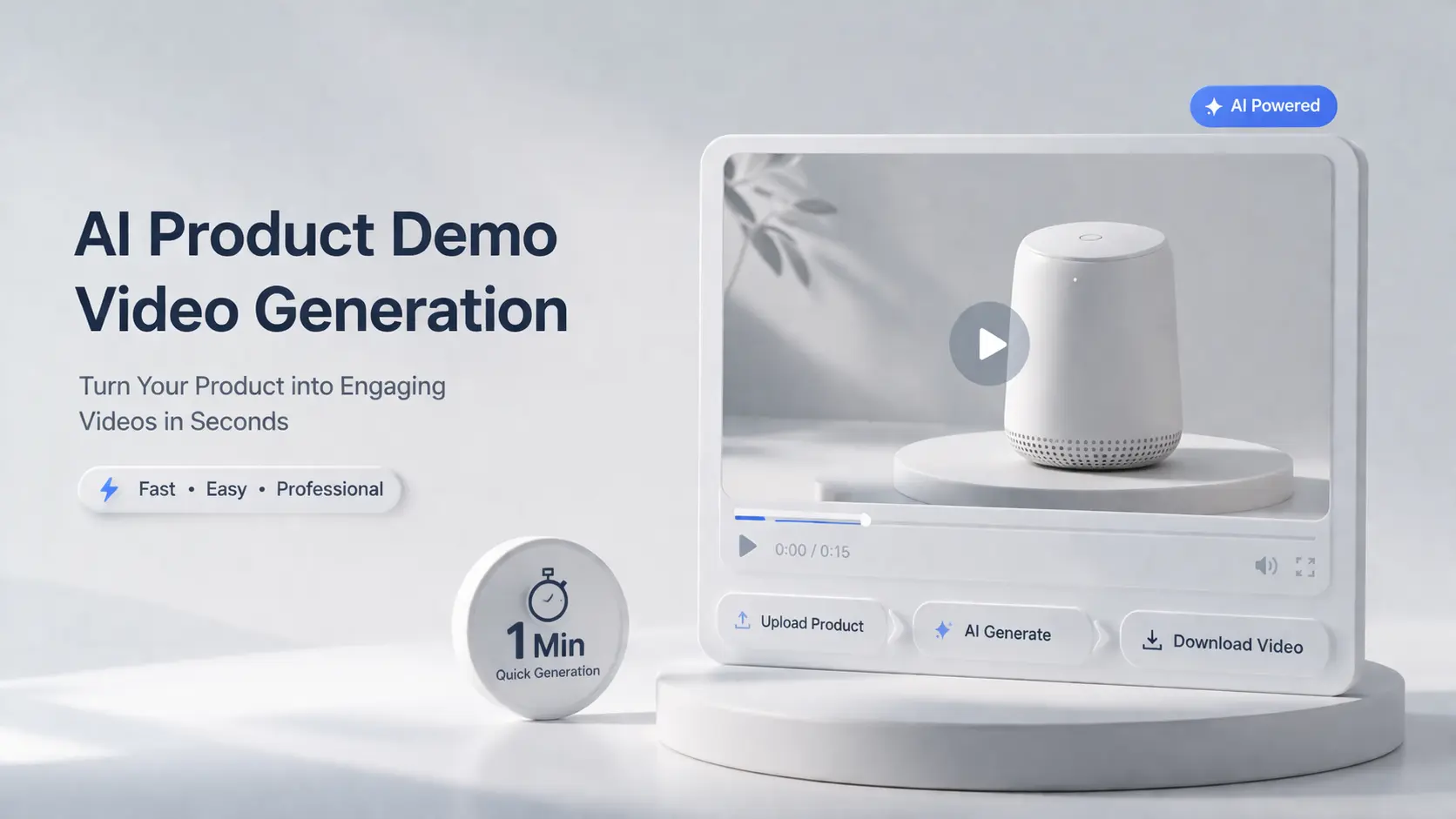
AI Product Demo Video Generation: Demonstrating Your Products Quickly And Creatively

AI Product Demo Video Generation: Demonstrating Your Products Quickly And Creatively

A few years ago, producing a single AI product demo video meant paying much for agent, or, hiring videographers, renting studio time, and surviving endless rounds of editing. Today, the same video takes minutes — generated from a product photo and a text prompt. AI product demo tools are solving this by turning static images and text into polished, professional videos without cameras, editors, or production crews. This guide breaks down the AI product demo revolution in three parts: why traditional production is losing ground, which tools deliver the fastest results, and how prompt-based customization lets you create demos that actually stand out. Whether you are a marketer managing dozens of campaigns or an Amazon seller with hundreds of SKUs, the playbook has changed. Why AI Demonstration Is Outpacing Traditional Demo Video Production The gap between traditional video production and AI-powered demo creation is widening fast. Here is why teams are making the switch. The Hidden Costs of Traditional Demo Video Production Traditional demo video production costs more than most teams expect. Equipment runs $2K–$10K, professional editors charge $50–$150/hr, and studio rentals add up fast. But the real budget killer is maintenance. Every time your product updates, your demo becomes outdated. For Amazon sellers managing hundreds of SKUs, re-shooting is operationally impossible. “The biggest problem isn’t creating demo videos — it’s keeping them updated. The moment your UI changes, your demo becomes outdated.” This maintenance trap means most teams run outdated AI product demo content for weeks, directly hurting conversions. How AI Demonstration Tools Slash Time from Weeks to Minutes Instead of the traditional shoot-edit-review-reshoot cycle, AI demonstration tools generate product demo videos from images, text prompts, or screen captures in minutes. Key capabilities driving this acceleration: Community data shows AI workflows cut over 80% of production costs. One team replaced a $5,000-per-video process with a $50/month AI product demo tool producing unlimited output. Why Marketers and Amazon Sellers Are Leading the Shift Marketers and Amazon sellers face unique pressures that make AI product demo creation essential. Product listing videos, social media ads, email assets, and landing page tours all require video — and they need it fast. Buyers increasingly prefer self-serve demos over scheduled calls. Research shows a 23% conversion increase when demos are placed above pricing on landing pages. AI product demo tools make it feasible to create video for every SKU, not just top sellers. [Image: Side-by-side comparison of traditional video production timeline vs. AI demo creation timeline] Top UGC Video Software for Product Demos: AI Tools That Deliver Fast Results The AI product demo market splits into three categories: video generators, interactive demo creators, and budget-friendly supporting tools. Here is what actually delivers. AI Demo Video Generator Platforms: Feature and Pricing Breakdown The leading AI demo video generator platforms each bring distinct strengths: HeyGen sets the benchmark for AI avatar quality with high-fidelity lip-sync technology, 100+ avatars, and voice cloning. It is ideal for spokesperson-led AI product demo videos that need a realistic human presence. Synthesia targets enterprise training with SOC 2 compliance, a massive template library, and pricing starting at $30/month. The output is professional, though some users note it can feel “corporate” for product demos. AI Image to Video excels at converting product images directly into dynamic videos using multiple AI models including Kling, Veo, and Wan. With quick output and enough free trial credits, it is particularly practical for Amazon sellers managing large catalogs who need to turn product photos into demo videos at scale. Interactive Demo Creators vs Video-Based Product Demo Videos Not every AI product demo needs to be a video. Interactive demo creators build clickable product tours that convert differently. Interactive demos work best for landing pages, sales enablement, and complex SaaS products. Video demos win for social media, onboarding, and Amazon listings. Key interactive platforms: Storylane (from $40/mo, agentic RepX), Navattic (enterprise-grade, from $600/mo), Supademo (fastest creation, from $38/mo), and Arcade (from $32/mo, strong video export). Key Takeaway: Use both formats. Interactive demos on landing pages, video demos for social and e-commerce. The best AI product demo strategy combines both. Budget-Friendly Tools for Small Teams and Solo Marketers Enterprise pricing is a common frustration in the AI product demo space. “I dislike the fact that almost all of the available tools are priced for enterprise / funded companies and not for a bootstrapped founder.” — Reddit r/sales Here is the community-tested $0 budget workflow: ChatGPT for scripting, Gemini for images, Loom for screen recording (free tier), and CapCut for editing (free). Mid-budget stack ($50–$200/mo): Screen Studio ($100 one-time) for polished recordings, Descript for AI text-based editing and filler removal, and ElevenLabs for professional AI voiceover. The key is combining free-tier options strategically. Customized Demo Video Production with Prompts Off-the-shelf templates get you started. But the real competitive advantage in AI product demo creation comes from mastering prompt engineering — the skill of writing text instructions that produce exactly the video output you need. Adjusting Prompts for More Creative AI Demonstration Effects Effective prompts for AI product demo videos follow a four-part formula: Subject + Action + Context + Style. Weak prompt: “A product on a table” Strong prompt: “Close-up of matte black wireless earbuds resting on brushed concrete surface, slow orbit clockwise completing one full rotation, soft rim light catching metallic accents, premium minimalist commercial aesthetic, 4K” Here are the prompting techniques that separate generic AI product demo output from videos that actually convert: Category-specific prompt formulas: Product Type Motion Style Lighting Keywords Opening Hook Electronics Quick, precise rotations Cool, LED-panel lit “Power-on moment, screen illuminate” Fashion Flowing, natural fabric movement Soft diffused, editorial “Fabric texture close-up” Beauty/Skincare Slow, sensual, liquid pour Soft, glowing, dewy “Texture close-up, product dispense” Food/Beverage Slow motion pour, steam rising Warm, golden hour “Pour, slice, steam rising” Jewelry Very slow orbit, light catching Dramatic directional rim light “Light refraction, sparkle on facets” From Product Photos to Dynamic Product Demo Videos The image-to-video pipeline is the most practical workflow for AI product demo creation,


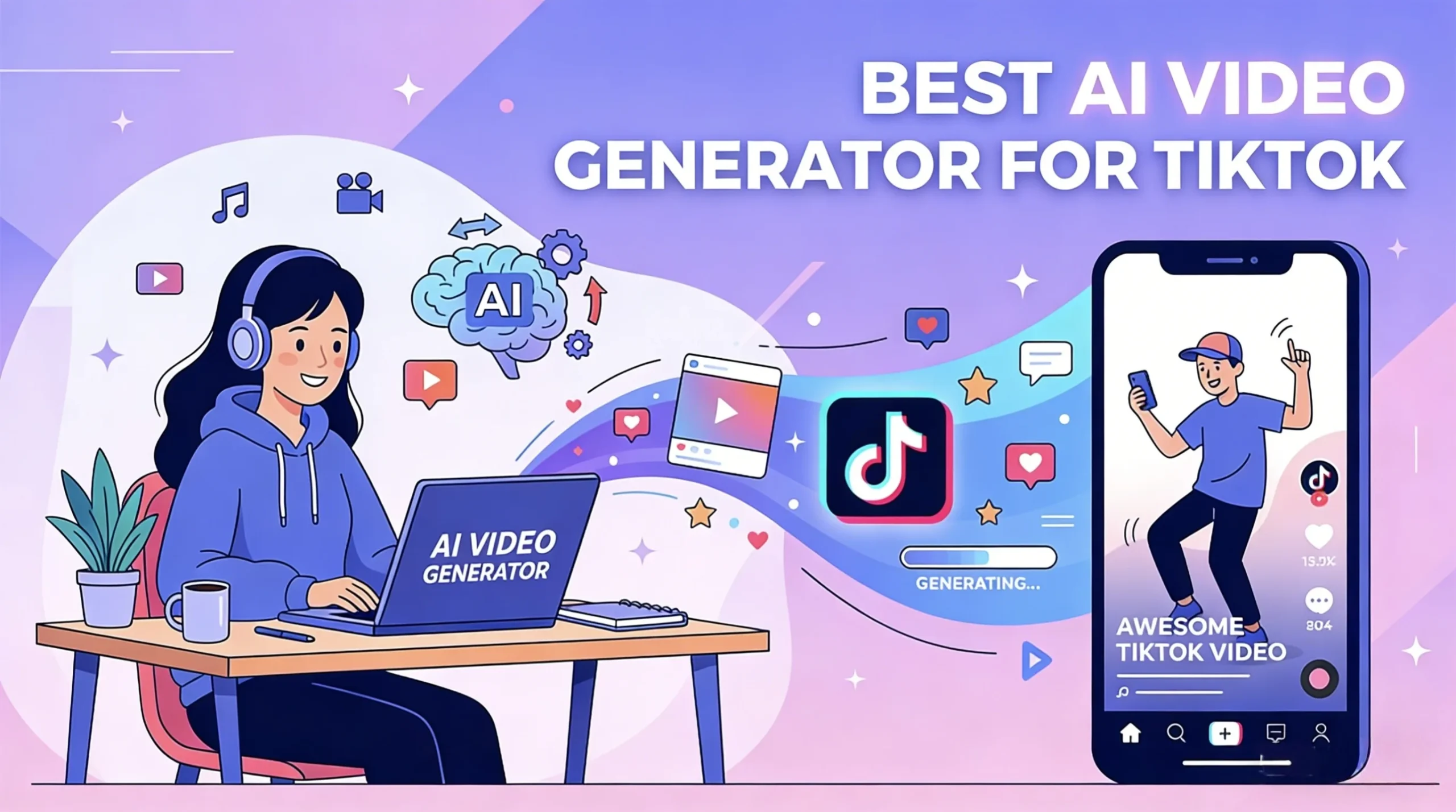
Best AI TikTok Video Generators in 2026, Tested and Ranked

Best AI TikTok Video Generators in 2026, Tested and Ranked

TikTok is full of AI-generated videos now, but most of them still have the same problem: they look like AI. The motion feels too polished, the pacing feels off, and the whole thing looks more like a demo reel than something people would actually watch in their feed. That is why choosing the right AI TikTok video generator is only part of the job. The bigger difference usually comes from workflow. Some tools are great for quick script-to-video drafts. Others are much better for image-to-video, where you have more control over style, character consistency, and motion. After comparing the most talked-about options, a clear pattern shows up. There is no single best tool for everyone. The best AI TikTok video generator depends on whether you care most about speed, realism, free access, or making lots of short videos without watermarks. Which AI TikTok Video Generator Is Best? Here is the short answer. If you are making TikTok content regularly, the smartest approach is not “pick one tool and do everything there.” It is usually this: create a strong visual first, animate it with an image-to-video model, then finish the edit in a lightweight editor. Quick Comparison Tool Best For Main Strength Main Limitation CapCut Beginners Fast, easy, TikTok-native workflow Better for editing and packaging than true high-end generation Kling Realistic I2V Natural motion and strong physics Learning curve is higher AI Image to Video High-volume creators Multi-model workflow, no-watermark output Less ideal if you want pure one-click script-to-video Veo AI people Strong human realism and natural expressions Short clips still need stitching Higgsfield Short-form creators Better control over pacing and camera feel Still a newer workflow for many users Sora Cinematic visuals Polished, high-end output Short clip length makes TikTok workflows slower InVideo AI Script-to-video Fastest way to go from idea to finished draft Results can feel generic Best AI TikTok Video Generators in 2026 CapCut: Best Free AI TikTok Maker for Beginners CapCut is still the easiest starting point for most creators. It is fast, familiar, and built around the kind of short-form workflow TikTok rewards. If your goal is to turn an idea into a post quickly, CapCut does that better than most all-in-one tools. Its biggest advantage is convenience. Captions, templates, quick edits, and export all sit in one place, which makes it great for testing ideas fast. The downside is that it works better as an editing and packaging tool than a serious AI generation engine. Best for: beginners and fast TikTok draftsNot ideal for: creators who want more original or high-end AI visuals Kling: Best for Realistic Image-to-Video Kling is one of the strongest options if realism is your priority. It handles motion better than many competitors, especially when you use it for image-to-video instead of text-to-video. That matters on TikTok, where overly cinematic AI clips can feel unnatural. Kling is better at turning a strong source image into something with believable movement and cleaner physics. The tradeoff is that it rewards a stronger workflow. If you want the best results, you usually need a solid base image first. Best for: realistic I2V content and creators who care about motion qualityNot ideal for: complete beginners who want one-click output AI Image to Video: Best for Watermark-Free TikTok Workflows AI Image to Video is a more practical AI TikTok video generator for creators who want a repeatable workflow, not just a one-off experiment. If you are making short videos regularly, especially across different styles or campaigns, it gives you more room to scale. Its main strength is flexibility. You are not locked into a single generation style, which is useful when one model works better for realism and another works better for stylized motion. It is also a stronger fit if you want clean, watermark-free output from an AI video generator for TikTok. The only catch is that it is less beginner-friendly than a simple script-to-video tool. Best for: workflow-driven creators, batch production, watermark-free outputNot ideal for: users who want the simplest possible generation flow Veo: Best for Realistic AI People Veo stands out when your content depends on believable human characters. Many AI video tools can generate motion or scenery, but fewer handle faces, expressions, and human presence well enough for short-form content. That makes Veo especially useful for AI influencer content, UGC-style visuals, or any format where viewers need to trust the person on screen right away. Its biggest weakness is workflow, not quality. Like most top-end models, it works better for short clips than full finished videos, so you still need editing around it. Best for: AI people, UGC-style visuals, human realismNot ideal for: users looking for a full end-to-end workflow in one tool Higgsfield: Best for TikTok-Style Pacing Higgsfield is interesting because it focuses on how short-form content actually feels. A lot of AI videos fail on TikTok not because the visuals are bad, but because the pacing, camera movement, or rhythm feels wrong for vertical feeds. That is where Higgsfield stands out. Its output feels more aware of TikTok and Shorts conventions, which helps videos feel less like cinematic demos and more like native short-form content. The downside is that it is not the most familiar tool in this space, so its value is clearer once you already know pacing is the problem you need to solve. Best for: TikTok-first creators and users who care about short-form aestheticsNot ideal for: beginners who want the safest mainstream option Sora: Best for Cinematic Clips Sora is still one of the best tools here for pure visual polish. If your goal is to make cinematic, impressive-looking clips, it remains one of the strongest models in the group. The problem is that “looks amazing” does not always mean “works best for TikTok.” Sora is strongest when you want a dramatic visual moment or a more artistic result, but it is less convenient for repeatable short-form production. Clip length and workflow friction make it harder to use at scale. Best for: cinematic visuals and premium

Wan Image to Video: Complete Beginner’s Guide to AI Video Generation in 2026

Wan Image to Video: Complete Beginner’s Guide to AI Video Generation in 2026

Picture transforming any photograph into a smooth, cinematic video clip in just minutes—all without spending a dime. That’s exactly what Wan 2.2 delivers, and it’s running the AI video generation world right now. But here’s the catch: most tutorials assume you already know ComfyUI, have a powerful GPU, and understand technical jargon. This leaves many creators frustrated before they even start. This guide changes that. Whether you want to run Wan locally or prefer simpler online alternatives, you’ll learn everything needed to create your first AI video today. What Is Wan 2.2 and Why Is It Revolutionary for Image-to-Video? Understanding this technology opens doors to creative possibilities that were impossible just months ago. Understanding Wan 2.2: The Open-Source Breakthrough Wan 2.2 is a free, open-source AI model from Alibaba that transforms static images into dynamic videos. Unlike subscription-based services, you can run it on your own computer at no cost. The community calls it “mind-bogglingly good” for open-source software. Seven months ago, generating videos this quality locally wasn’t even possible. Why Wan Outperforms Other AI Video Models What sets Wan apart is its exceptional prompt adherence. When you describe what you want, the model actually listens—something competitors struggle with. Key advantages include: Wan 2.2 Model Variants Explained (5B vs 14B) Wan comes in two main sizes: Model Parameters Best For Wan 5B 5 billion Budget GPUs, faster generation Wan 14B 14 billion Maximum quality output The 14B model produces better results but demands more powerful hardware. GGUF quantized versions offer a middle ground, reducing memory requirements while maintaining quality. Hardware Requirements for Wan Image to Video Before investing time in setup, verify your computer can handle the workload. Minimum VRAM Requirements by Model Size If your GPU has less than 8GB, local generation becomes impractical. Consider online alternatives instead. Recommended GPUs for Wan 2.2 For smooth operation, these cards deliver reliable performance: Running Wan on Low VRAM (8GB Solutions) Budget GPU owners aren’t completely locked out. Try these optimizations: How to Set Up Wan 2.2 in ComfyUI (Step-by-Step) This section tackles the biggest pain point users report: the complex installation process. Installing ComfyUI and Required Dependencies Start by installing ComfyUI from the official repository. You’ll need Python 3.10+ and several custom nodes including ComfyUI-WanVideoWrapper. Fair warning: the community jokes that “every update breaks something.” Patience helps. Downloading Wan Models and Checkpoints Get official models from Hugging Face: Verify file integrity after download—corrupted files cause cryptic errors. Loading Your First Wan Image-to-Video Workflow Import pre-built workflows from Civitai to skip manual node configuration. Load your workflow, connect an input image, write a simple prompt, and hit generate. Key Takeaway: Starting with community workflows saves hours of troubleshooting. Wan Image-to-Video Prompting Guide Good prompts make the difference between disappointing and stunning results. Anatomy of an Effective Wan Prompt Structure your prompts with these elements: Example: “Woman in red dress, gentle wind blowing hair, subtle smile appearing, cinematic lighting, slow zoom in” Negative Prompts: What Works and What Doesn’t Users frequently complain that negative prompts get ignored. Wan processes them differently than image generators. Instead of listing everything to avoid, focus on describing what you do want. Positive framing works better than negative lists. Common Prompting Mistakes and How to Fix Them Problem Solution Unwanted mouth movement Specify “closed mouth” or “neutral expression” Color drift Add “consistent colors, stable lighting” Erratic motion Use “subtle movement, gentle motion” Online Alternatives: Wan Image to Video Without ComfyUI Not everyone wants to wrestle with technical setup—and that’s perfectly valid. Why Consider Online Wan Tools? Online platforms eliminate hardware requirements entirely. No GPU needed, no installation headaches, instant access from any browser. This approach suits creators who want results without becoming system administrators. AI Image to Video Pro: Full-Featured Online Solution AI Image to Video provides access to Wan alongside other models like Kling and Veo. The platform outputs up to 4K resolution without watermarks, making it practical for professional content. Social media creators, marketers, and small businesses benefit from the streamlined interface that handles all technical complexity behind the scenes. Comparing Local vs. Online Wan Generation Aspect Local (ComfyUI) Online Platforms Cost Free after hardware Per-generation or subscription Setup Complex None Privacy Complete Varies by provider Hardware needed Yes (8GB+ VRAM) No Advanced Wan Techniques for Better Results Once basics are mastered, these techniques elevate output quality. Using LoRAs to Enhance Wan Output LoRAs are small fine-tuned additions that modify model behavior: First and Last Frame Control This technique lets you define exactly how videos begin and end. Upload a start frame and end frame, then let Wan interpolate the motion between them. Creating Longer Videos with SVI Pro Workflows Wan’s native output length is limited. SVI Pro workflows chain multiple segments together, enabling videos beyond standard clip length through intelligent interpolation. Wan 2.2 vs. Competitors: Which AI Video Generator Should You Use? Understanding alternatives helps you choose the right tool. Wan 2.2 vs. LTX 2.3: Detailed Comparison Feature Wan 2.2 LTX 2.3 Prompt adherence Excellent Poor Native resolution 720p 1440p Frame rate 16fps 24fps Audio generation No Yes Wan wins on quality and consistency; LTX offers higher specs on paper but often fails to follow instructions. Wan vs. Commercial Options (VEO 3, Kling, Runway) Commercial services like VEO 3 and Runway provide polished experiences but charge significant fees. Wan delivers comparable quality for free—if you’re willing to handle setup. Online platforms like AI Image to Video bridge this gap by offering multiple models including Wan with professional output quality. When to Use Which Tool Troubleshooting Common Wan Image-to-Video Issues These solutions address problems users encounter most frequently. VRAM Errors and Out-of-Memory Fixes CUDA out-of-memory errors mean your GPU is overwhelmed. Solutions: Workflow Node Errors and Compatibility Issues Missing nodes or version mismatches cause red error boxes in ComfyUI. Update all custom nodes simultaneously and verify ComfyUI version compatibility with your workflow. Quality Issues: Artifacts, Color Drift, and Flickering Adjust CFG (Classifier-Free Guidance) values if output looks wrong. Lower CFG reduces artifacts; higher CFG strengthens

FAQs About AI Image to Video Generator

Is there an image to video AI free option?

Yes, aiimagetovideo pro offers a free plan to try image to video AI. Create a video from an image, test features, and generate clips. It is the best way to explore our free AI image to video generator capabilities without risk. You can access image to video ai free unlimited trial features with daily credits. Make video from image for free.

What is the best image to video AI tool?

The best image to video AI depends on your goals. Our aiimagetovideo pro is one of the best ai photo to video apps for creators. Our free AI Image to Video generator lets you convert image to video easily, striving to match Google Veo and Veo 2 quality. Use it to make video magic online. Add image assets to generate video.

Do you integrate Veo 3 model or other AI engines?

We integrate leading technologies. While we admire Veo 3, Kling AI Image to Video, and Runway AI Image to Video, our custom models deliver competitive results to create high-quality videos from images. We add image support for various formats in our free generator.

How to create video with images?

Image to video AI uses deep learning. Simply upload an image, add prompts, and the AI turns it into a dynamic video. It is the simplest way to learn how to make a video with photos and videos using a free generator. Convert image to video steps are simple.

Do you integrate with other AI models like Veo 3?

We are evaluating integrations with Veo 3, Imagen 3, and Pollo AI Image to Video. We also look at image to video trends and tools like HeyGen image to video to improve our service. We aim to provide the best online free experience. Make video innovation your goal.

Is there an AI image to video no account option?

Currently, you need an account for our AI Image to Video generator. Registration is free and includes credits to test image-to-video creation. This allows you to save your AI video from image projects. Sign up to use our free app features. Add image projects to your portfolio.

How can I create professional results with free image to video AI?

Even with free image to video AI, you can get professional results. Use high-quality images and our aiimagetovideo pro. We ensure smooth rendering, making us a top choice for those looking to convert image to video AI free. Start to convert image to video today with our free tool.